Add files to a customer invoice
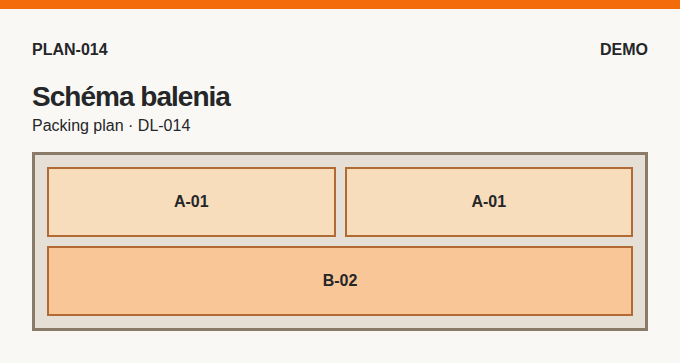
Add supporting files while an outgoing invoice is a draft. This example attaches a delivery note and a packing plan. You can download both files and try the steps with a draft in your sandbox company. Sample delivery note (PDF) · Sample packing plan (PNG)
Attach files in the company console
- Open Invoices → Issued and create an invoice. In the new-invoice window, select Attach files or drag the files into the form. Wait for Uploaded, finish the invoice details and save the draft.
- To add files to a saved draft, open it and choose Other actions → Attach files. You can also drop files onto the draft. On a phone, the Other actions link near the invoice heading takes you to the picker.
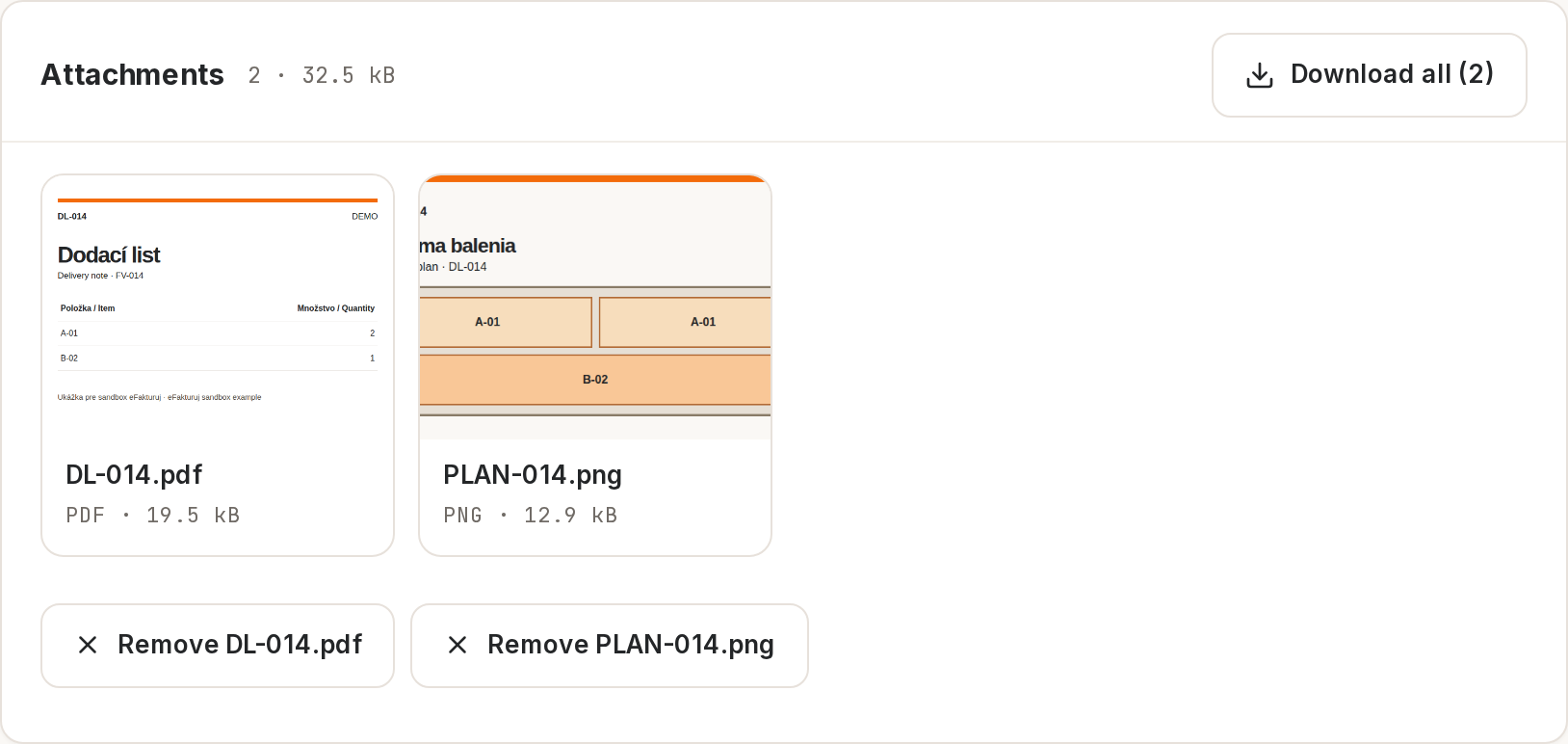
- In Attachments, check both filenames. Open a PDF or image to preview it. Download an original from its card, or choose Download all (2) to get a ZIP. To replace a file you added, remove it and attach the corrected copy while the invoice is still a draft.
- Confirm the draft only when its files are correct. Confirmation locks the file list. Validate the invoice, open the send dialog and check the filenames before sending. A Peppol invoice carries its supporting files in its XML. In an optional customer email copy, files that exceed the email provider’s capacity or use a type it does not accept directly are available through a private download link valid for 30 days.
The picker accepts PDF, JPG/JPEG, PNG, CSV, XLSX and ODS. The interface shows limits of 10 MB per file, 20 files and 20 MB total per document. The exact API limits are 10 MiB and 20 MiB (10,485,760 and 20,971,520 bytes). Received documents are read-only. For an invoice sent from an uploaded XML or through SAPI, correct the source document in the originating system.
Upload through the company API
Use a company credential with invoices:write to attach files and invoices:read to inspect or download them. A company user needs permission to create drafts. These examples use the sandbox and an existing outgoing draft.
Stage the file. Send one multipart request per file. The optional description can be up to 200 characters. A successful request returns 201 with the upload’s id, filename, size and expiry. Use the same company and credential to attach it within 24 hours.
company_url="https://api.sandbox.efakturuj.sk/api/v1/companies/${COMPANY_ID}"
upload_id=$(curl --fail --silent --show-error \
  --header "X-API-Key: ${API_KEY}" \
  --form 'file=@DL-014.pdf;type=application/pdf' \
  --form 'description=Delivery note DL-014' \
  "${company_url}/attachment-uploads" | jq -er '.id')
Attach it to the draft. Get the invoice’s current ETag from GET /invoices/{invoice_id}, including its quotation marks, and send it in If-Match. The response is the updated file list and carries the new invoice ETag. To attach files when creating an invoice, put the staged IDs in the normal create request’s attachment_upload_ids array.
invoice_url="${company_url}/invoices/${INVOICE_ID}"
etag=$(curl --fail --silent --show-error --dump-header - --output /dev/null \
  --header "X-API-Key: ${API_KEY}" "${invoice_url}" |
  awk 'tolower($1) == "etag:" { gsub(/\r/, "", $2); print $2 }')
curl --fail-with-body --request POST "${invoice_url}/attachments" \
  --header "X-API-Key: ${API_KEY}" --header "If-Match: ${etag}" \
  --header 'Content-Type: application/json' \
--data "$(jq -nc --arg id "${upload_id}" '{upload_ids: [$id]}')"| Action | Method and path under /api/v1/companies/{company_id} |
|---|---|
| List current files, invoice version and edit policy | GET /invoices/{invoice_id}/attachments |
| Download one original | GET /invoices/{invoice_id}/attachments/{attachment_id} |
| Download the eligible files as a ZIP | GET /invoices/{invoice_id}/attachments/archive |
| Remove a user-added file from a draft | DELETE /invoices/{invoice_id}/attachments/{attachment_id} with the current If-Match |
| Discard a staged upload before attaching it | DELETE /attachment-uploads/{upload_id} |
If a file is refused
| Response | What to do |
|---|---|
413 attachment_too_large or a total/count limit | Reduce the file size or remove unnecessary files from the draft. |
415 attachment_type_not_allowed or 422 attachment_content_mismatch | Export the file in an accepted format. Check its actual contents and extension. |
409 attachment_duplicate | Check the files already attached. The same file contents count as a duplicate even with a different filename. |
409 attachment_upload_not_found | Verify the company and credential. Stage the file again if its upload expired or has already been used. |
409 attachments_locked | Check the invoice status and source. Supporting files can be changed on an eligible outgoing draft. |
412 or 428 | Read the current invoice and files. If the draft is still editable, retry with its current ETag. |
For a walkthrough with the actual buttons in each language, see the illustrated invoice attachment guide. For invoice validation and delivery, see Sending invoices.